Introduction
If you've recently bought a new laptop and found yourself staring at a single USB-C port wondering where everything plugs in, you're not alone. Modern laptops have traded a variety of ports for sleek, thin designs—and that's where USB-C hubs come in.
This guide is designed specifically for beginners who are new to USB-C hubs and feel overwhelmed by the technical jargon. We'll break everything down into simple terms, explain what actually matters when choosing a hub, and help you avoid common mistakes that waste money. By the end, you'll feel confident picking out your first USB-C hub and connecting all your devices without frustration.
What is a USB-C Hub?
A USB-C hub is a small device that plugs into your computer's USB-C port and expands it into multiple ports. Think of it like a power strip for your laptop—instead of having one outlet, you suddenly have several.
The USB-C connector itself is that small, oval-shaped port found on most modern laptops, tablets, and phones. It's reversible (no more fumbling to plug it in the right way) and capable of handling data transfer, video output, and power delivery all through the same connection.
A typical USB-C hub might give you:
- Additional USB-A ports (the rectangular ones you're probably familiar with)
- An HDMI port for connecting monitors or TVs
- An SD card slot for cameras
- An ethernet port for wired internet
- A USB-C port for charging your laptop while the hub is connected
The hub draws power from your laptop and acts as a translator, allowing older devices and accessories to work with your modern USB-C-only computer.
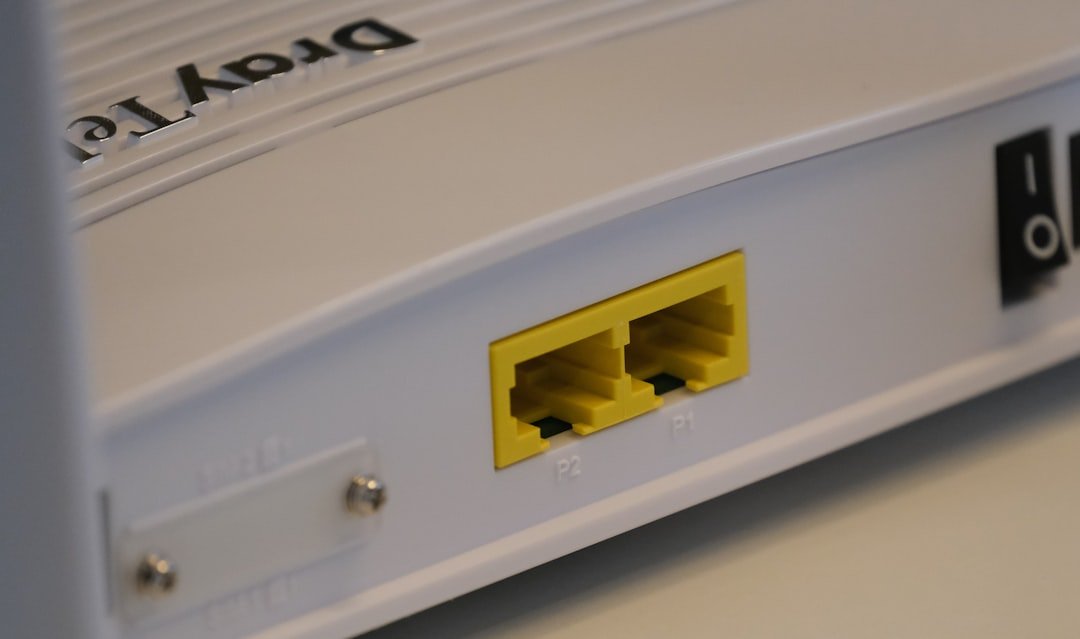
Photo by Compare Fibre on Unsplash
Why Should You Care?
You might be wondering if you really need a USB-C hub. Here's the reality: if your laptop only has USB-C ports (which is increasingly common with MacBooks, Dell XPS models, and many Windows ultrabooks), a hub isn't just convenient—it's practically essential.
Consider what you might need to connect on any given day:
- A mouse and keyboard
- An external monitor for more screen space
- A flash drive or external hard drive
- Your phone's charging cable
- Headphones or speakers
- An SD card from your camera
Without a hub, you'd need adapters for each device, creating a tangled mess of dongles. A single hub consolidates everything into one clean solution.
- Connect all your devices through one port
- Cleaner desk setup with fewer cables
- Portable—take it with you when traveling
- Often cheaper than buying individual adapters
- Future-proof your older accessories
- Adds another device to carry
- Quality varies significantly between brands
- Some cheap hubs can cause connection issues
- May require separate power for demanding setups
According to USB-IF, the organization that maintains USB standards, USB-C adoption has grown rapidly since 2020, making hubs an increasingly common accessory for everyday computing.
Getting Started
Before you buy a USB-C hub, take a few minutes to assess what you actually need. This simple exercise will save you from buying a hub with ports you'll never use—or worse, one that's missing the port you need most.
-
Count how many USB-C ports you have and note if any are Thunderbolt (marked with a lightning bolt icon)
-
Write down everything you need to connect: mouse, keyboard, monitor, external drives, SD cards, etc.
-
Note which devices use USB-A, USB-C, HDMI, DisplayPort, or other connections
-
Do you want to connect one external monitor? Two? What resolution and refresh rate do they support?
-
Do you want to charge your laptop through the hub while using it? Check your laptop's required wattage
-
Will this hub live on your desk, or do you need something compact for travel?
Once you've completed this checklist, you'll have a clear picture of the minimum ports your hub needs. Most beginners find they need at least one HDMI port, two USB-A ports, and pass-through charging capability.
Basic Concepts
Let's demystify the technical terms you'll encounter when shopping for a USB-C hub. Understanding these basics will help you compare products and avoid marketing hype.
USB-A vs. USB-C
USB-A is the traditional rectangular USB port you've used for years. USB-C is the newer, smaller oval port. Most hubs convert USB-C to USB-A because many accessories (mice, keyboards, flash drives) still use the older standard.
Data Transfer Speeds
You'll see specs like USB 2.0, USB 3.0, USB 3.1, and USB 3.2. Here's what matters:
- USB 2.0: Slow (480 Mbps)—fine for mice and keyboards
- USB 3.0/3.1/3.2: Fast (5-20 Gbps)—necessary for external drives
For most beginners, ensure your hub has at least USB 3.0 ports for connecting storage devices.
Power Delivery (PD)
Power Delivery is a charging standard that allows your laptop to charge through the hub. The wattage matters here:
- 60W: Adequate for ultrabooks and light laptops
- 85-100W: Better for larger laptops or when running demanding tasks
Check your laptop's original charger to see its wattage, then choose a hub that supports at least that amount for pass-through charging.
HDMI Versions
If you're connecting a monitor, HDMI version determines what's possible:
- HDMI 1.4: Supports 4K at 30Hz (choppy for some uses)
- HDMI 2.0: Supports 4K at 60Hz (smooth, recommended)
- HDMI 2.1: Supports 4K at 120Hz or 8K (overkill for most beginners)
| Spec | Budget Hubs | Mid-Range Hubs | Premium Hubs |
|---|---|---|---|
| USB-A Ports | USB 2.0 speeds | USB 3.0 speeds | USB 3.2 speeds |
| Power Delivery | None or 60W | 60-85W | 100W+ |
| HDMI Output | 1080p or 4K@30Hz | 4K@60Hz | 4K@60Hz or dual display |
| Build Quality | Plastic, may overheat | Aluminum, better cooling | Premium materials, excellent cooling |
| Price Range | $15-30 | $35-60 | $70-150+ |
Common Beginner Mistakes
Learning from others' mistakes can save you money and frustration. Here are the pitfalls that trip up most first-time hub buyers:
Mistake #1: Buying the Cheapest Option
Those $10-15 hubs flooding online marketplaces often use inferior components. They may work initially but commonly fail within months, overheat during use, or cause intermittent connection issues. Investing $30-50 in a reputable brand typically provides much better reliability.
Mistake #2: Ignoring Power Delivery Wattage
If you buy a hub with 45W pass-through charging but your laptop needs 65W, it will charge slowly—or drain faster than it charges during heavy use. Always match or exceed your laptop's power requirements.
Mistake #3: Overlooking Heat Management
Cheap hubs often lack proper heat dissipation, causing them to get uncomfortably hot. This can lead to throttled performance, disconnection issues, or shortened lifespan. Aluminum-bodied hubs generally handle heat much better than plastic ones.
Mistake #4: Not Checking Compatibility
Not all USB-C ports are created equal. Some laptops have USB-C ports that don't support video output or full-speed data transfer. Check your laptop's specifications to ensure your USB-C port supports the features you need, especially for connecting monitors.
Mistake #5: Buying More Ports Than Needed
A 12-in-1 hub sounds impressive, but if you only use three ports, you've paid extra for nothing—and larger hubs generate more heat and consume more power. Buy for your actual needs, not hypothetical future scenarios.
Your First Hub Selection
Now let's put your knowledge into action. Here's a step-by-step process to select your first USB-C hub:
Step 1: Define Your Must-Have Ports
Refer back to the checklist you created earlier. Identify the ports you absolutely need versus those that would be nice to have. For most beginners, this typically includes:
- 1-2 USB-A ports for existing accessories
- 1 HDMI port for an external monitor
- USB-C pass-through charging
Step 2: Set a Realistic Budget
For a reliable hub that won't fail in six months, plan to spend $35-60. This range offers good build quality, proper heat management, and consistent performance. Brands like Anker, Satechi, CalDigit, and Ugreen have solid reputations in this space.
Step 3: Read Reviews Carefully
Look beyond star ratings. Search for reviews mentioning:
- Long-term reliability (3+ months of use)
- Heat levels during operation
- Consistency of connections
- Compatibility with your specific laptop model
Step 4: Check Return Policies
Even with research, you might encounter compatibility issues. Buy from retailers with good return policies so you can exchange if needed.
Step 5: Start Simple
For your first hub, a 6-in-1 or 7-in-1 model usually hits the sweet spot. You get the essential ports without overcomplicating things. You can always upgrade later once you better understand your needs.
Next Steps
Once you've chosen and started using your first USB-C hub, you'll quickly get a feel for what works and what might need improvement. Here's where to go from here:
If You Need More Display Options
If you find yourself wanting to connect multiple monitors, you may need to explore Thunderbolt docks (if your laptop supports Thunderbolt) or DisplayLink-based docking stations. These offer more advanced multi-monitor capabilities but come at a higher price point.
If You Need a Permanent Desk Setup
Consider upgrading to a full docking station rather than a portable hub. Docking stations typically offer more ports, better power delivery, and often include a stand or mount for cleaner cable management. The Wirecutter maintains excellent comparison guides for docking stations.
If You Travel Frequently
Look into ultra-compact travel hubs that prioritize portability over port count. Some excellent travel hubs fit in your pocket while still providing essential connectivity.
Keep Learning
USB-C technology continues to evolve. USB4 and Thunderbolt 4 bring faster speeds and more capabilities. While you don't need to chase the latest standards, staying informed helps you make better upgrade decisions when the time comes.
Ready to Explore More?
Now that you understand USB-C hubs, check out our accessory buying guides and reviews to find the perfect hub for your setup. We track what's actually performing well in the market so you can buy with confidence.
Browse Accessory GuidesFAQ Section
Conclusion
USB-C hubs might seem complicated at first glance, but they're really just simple expansion devices that bring back the connectivity modern laptops have traded away. Armed with the knowledge from this guide, you can confidently navigate the options and choose a hub that actually meets your needs.
Remember the key points: assess your actual port requirements before shopping, spend enough to get quality (around $40-50 hits the sweet spot), pay attention to power delivery wattage if you want pass-through charging, and don't get lured by hubs with more ports than you'll ever use.
Your first hub doesn't need to be perfect—it just needs to solve your immediate connectivity challenges. As you use it, you'll naturally discover what works for your workflow and what you might want to upgrade in the future.
Welcome to the world of USB-C connectivity. Once you have the right hub, you'll wonder how you ever managed without one.
Comments
No comments yet. Be the first to comment!
Leave a Comment